Golf simulator control boxes with keyboard shortcuts make setup, shot tracking, and menu navigation much faster from the hitting mat. Instead of walking back and forth to a keyboard, you can keep your focus on the session.
This roundup highlights practical options for players who want simpler control, reliable wireless operation, and a button layout that fits their simulator workflow.
Best 10 Golf Simulator Control Boxes with Keyboard Shortcuts Picks for 2026
Wireless RF Control Box
GS Pro 14-Button Simulator Controller

- Wireless RF dongle with up to 30-foot range
- 14 large tactile buttons for common sim shortcuts
- Auto-wake, plug-and-play operation with no programming
Best For: GSPro players wanting a wireless shortcut controller with big buttons
Native USB Hitting-Mat Controller
Sim Caddie GS Pro Wired Control Box

- Native USB keyboard design for GS Pro control
- 15-foot USB cable included for mat-side placement
- Plug-and-play with no software required
Best For: GS Pro players who want a wired shortcut box near the hitting mat
Dark Blue Wireless Control Box
GS Pro Wireless Sim Caddie - Dark Blue

- RF dongle wireless control with auto-wake
- 14 tactile buttons for GS Pro shortcuts
- Floor or table placement with single-AA power
Best For: GS Pro users wanting a wireless shortcut controller in dark blue
Gray Wired Hitting-Area Controller
Sim Caddie USB Control Box - Gray

- Native USB keyboard for simulator shortcuts
- Includes a 15-foot USB cable
- Plug-and-play with no software required
Best For: GS Pro users who want a straightforward wired controller in gray
Mag14 Wireless Button Box
14-Button Bluetooth Sim Control

- 14 customizable buttons for sim shortcuts
- Bluetooth wireless with rechargeable battery
- 30-minute sleep timer and 4-year warranty
Best For: PC users who want a wireless, high-button-count sim controller
Sim Caddie Native USB Keyboard

- Native USB keyboard design for sim controls
- No software required, plug and play
- Includes 3' USB charging cable
Best For: Players who want a simple wired controller that works out of the box
Elite Series Green 20-Button Box

- 20 programmable buttons for shortcut control
- Wireless Bluetooth with plug-and-play setup
- PC-compatible controller for sim use
Best For: PC sim players who want the most shortcut buttons in a wireless box
Native USB Sim Controller
The Golf Club 2019 Control Box
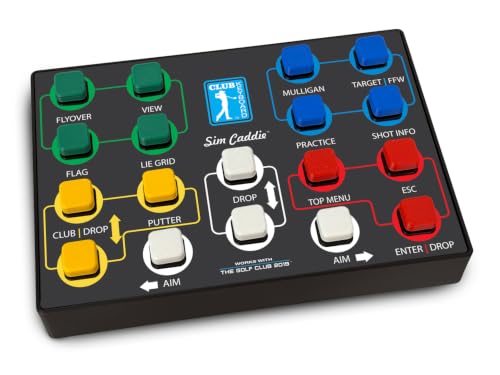
- Native USB keyboard for The Golf Club 2019
- Plug and play with no software required
- Includes 15' USB cable for mat-side use
Best For: The Golf Club 2019 users who want simple, wired control
Wireless 20-Button GS Pro Control
Club Keyboard Flex Series 20-Button

- Wireless Bluetooth connection with plug-and-play setup
- 20 programmable buttons for simulator shortcuts
- Buttons can be rearranged to fit your workflow
Best For: GS Pro users who want wireless, customizable shortcut control
Wireless 28-Button GS Pro Control
Club Keyboard Pro Series 28-Button

- 28 buttons for complete simulator control
- Wireless Bluetooth with plug-and-play setup
- 8 LED backlit buttons improve visibility
Best For: GS Pro users who want maximum shortcut coverage
Wireless RF Control Box – GS Pro 14-Button Simulator Controller
If you want golf simulator control boxes with keyboard shortcuts that keep you moving instead of reaching for a mouse, this GSPro wireless model is built for quick in-bay control. The 14 large tactile buttons cover common sim actions like mulligan, heat map, club selection, shot cam, and aim adjustments, and the RF dongle connection is designed for simple plug-and-play use.
Best For: GSPro users who want a wireless, no-programming control box with a larger button layout.
Pros:
- Wireless RF dongle connection with up to 30-foot range
- 14 large 30mm tactile buttons for easy operation
- Auto-wake and power-saving features help reduce setup fuss
- Can be used on the floor with a club or on a table
Cons:
- Built specifically for GSPRO software
- Requires a single AA battery
Overall, this is a practical pick if you want a clean, wireless shortcut box for GSPro and prefer large physical buttons over keyboard navigation. The hand-built USA construction and flexible placement make it easy to integrate into a home sim setup.
Native USB Hitting-Mat Controller – Sim Caddie GS Pro Wired Control Box
For golfers looking at golf simulator control boxes with keyboard shortcuts, this Sim Caddie model keeps the controls right at the hitting mat and behaves like a native USB keyboard. It is made for GS Pro, includes a 15-foot USB cable, and is described as truly plug-and-play with no software required.
Best For: GS Pro users who want a simple wired controller that sits near the hitting area.
Pros:
- Native USB keyboard design for simulator control
- Includes a 15-foot USB cable for flexible placement
- Plug-and-play use with no software required
- Made in the USA
Cons:
- Wired connection may be less convenient than wireless options
- Warranty is limited to 90 days
This is a straightforward choice if you mainly want dependable shortcut access without extra setup. Its simpler wired approach makes sense for players who want controls close to the hitting area and do not need wireless features.
Dark Blue Wireless Control Box – GS Pro Wireless Sim Caddie – Dark Blue
If you are comparing golf simulator control boxes with keyboard shortcuts for a GS Pro setup, this dark blue wireless version offers the same large-button layout with a different finish. It uses an RF dongle, supports auto-wake, and is designed for plug-and-play operation without programming.
Best For: GS Pro users who want the wireless 14-button layout in a dark blue finish.
Pros:
- Wireless RF dongle connection with up to 30-foot range
- 14 large tactile buttons for fast sim navigation
- Auto-wake and power-saving features
- Can be used on the floor or on a table
Cons:
- Requires a single AA battery
- Limited to GSPRO software compatibility
Functionally, this is a close match to the other wireless GS Pro box, so the choice mostly comes down to color preference. It still delivers the same practical shortcut access and flexible placement for a clean simulator workflow.
Gray Wired Hitting-Area Controller – Sim Caddie USB Control Box – Gray
This gray Sim Caddie is another practical option among golf simulator control boxes with keyboard shortcuts, especially if you want a simple wired controller near the hitting area. It is a native USB keyboard for your sim, includes a 15-foot cable, and is meant to be plug-and-play with no software required.
Best For: GS Pro users who want a wired, no-fuss control box in a gray finish.
Pros:
- Native USB keyboard design for straightforward simulator control
- 15-foot USB cable gives good placement flexibility
- Plug-and-play operation with no software required
- Made in the USA
Cons:
- Wired setup may be less tidy than wireless alternatives
- Warranty is only 90 days
For buyers who value simplicity over extras, this model keeps the control experience focused and reliable. The gray finish changes the look, but the core benefit remains quick shortcut access from your hitting station.
Mag14 Wireless Button Box – 14-Button Bluetooth Sim Control
If you want golf simulator control boxes with keyboard shortcuts that keep you in the hitting area, the Premium Mag14 is built around 14 customizable buttons. It connects via Bluetooth, uses a rechargeable battery, and adds a 30-minute inactive sleep timer, making it a practical pick for PC-based simulator setups where quick access matters.
Best For: PC golfers who want a wireless, button-heavy controller for simulator software.
Pros:
- 14 customizable buttons for simulator controls and keyboard shortcuts
- Wireless Bluetooth connection keeps cables out of the hitting area
- Rechargeable battery with a 30-minute inactive sleep timer
- Backed by a 4-year warranty
Cons:
- For PC-based software only
- May be more controller than needed if you only want a few basic commands
This is a strong choice if you want more direct control from the mat and prefer a larger button layout. The long warranty and wireless design add appeal, but the PC-only limitation is important to note before buying.
Sim Caddie Native USB Keyboard – Plug-and-Play Mat Controller
For golfers shopping golf simulator control boxes with keyboard shortcuts, the Sim Caddie stands out because it is described as a native USB keyboard designed for your sim. It is aimed at simple operation from the hitting mat, with plug-and-play setup and no software required, which makes it appealing if you want a straightforward controller that just works.
Best For: Golfers who want a simple wired plug-and-play controller for their simulator.
Pros:
- Native USB keyboard design for simulator control
- Plug-and-play setup with no software required
- Includes a 3′ USB charging cable
- Made in the USA
Cons:
- Only a 90-day manufacturer warranty
- Wired USB design may be less flexible than wireless options
This is a clean, low-friction option for players who want the essential sim controls within reach and do not want to deal with extra setup. The short warranty is the main tradeoff, but the simplicity is a clear strength.
Elite Series Green 20-Button Box – Wireless GS Pro Sim Keyboard
Club Keyboard Elite Series Wireless 20 Button GS Pro Golf Simulator Control Box (Green)
Check Price On AmazonThe Club Keyboard Elite Series is one of the more button-rich golf simulator control boxes with keyboard shortcuts, offering 20 programmable buttons in a wireless Bluetooth package. It is positioned for PC use and is described as plug and play, so it suits golfers who want more on-box control without adding setup complexity.
Best For: PC golfers who want a wireless, programmable controller with lots of buttons.
Pros:
- 20 programmable buttons for simulator shortcuts
- Wireless Bluetooth connection
- Plug and play with no software required
- Built for PC compatibility
Cons:
- PC-only compatibility may limit some setups
- More buttons and features than casual users may need
If you want maximum shortcut access from the hitting area, this model has one of the largest button counts in the group. Its wireless design and no-software setup make it easy to adopt, especially for PC-based sim rooms.
Native USB Sim Controller – The Golf Club 2019 Control Box
If you want golf simulator control boxes with keyboard shortcuts that feel simple and reliable, this native USB keyboard is built specifically for The Golf Club 2019. It puts the key simulator controls within reach of your hitting mat and uses a 15′ USB cable, so you can keep the setup clean without needing extra software.
Best For: Players using The Golf Club 2019 who want a straightforward plug-and-play control box from the hitting area.
Pros:
- Native USB keyboard designed for The Golf Club 2019
- Truly plug and play with no software required
- Includes a 15′ USB cable for flexible placement
- Built in the USA
Cons:
- Made for The Golf Club 2019, so compatibility is narrow
- Uses a wired USB connection rather than wireless control
This is a practical choice if your priority is dependable, no-fuss control from the mat. The tradeoff is that it is purpose-built for one simulator platform, but that focus is also what makes it easy to use.
Wireless 20-Button GS Pro Control – Club Keyboard Flex Series 20-Button
Club Keyboard Flex Series Wireless 20 Button GS Pro Golf Simulator Control Box (Gray)
Check Price On AmazonAmong golf simulator control boxes with keyboard shortcuts, this wireless Bluetooth model is aimed at GS Pro users who want a compact, programmable control surface. It is plug and play, ready for PC use, and the 20 buttons can be updated and rearranged to fit how you like to run your simulator.
Best For: GS Pro players who want a wireless, customizable control box with plenty of shortcut buttons.
Pros:
- Wireless Bluetooth connection for a cleaner setup
- 20 programmable buttons for shortcut control
- Buttons can be rearranged to suit your needs
- Long battery life that does not need charging very often
Cons:
- Designed for PC use only
- Best matched to GS Pro, so it is more specialized than general-purpose controllers
This model stands out if you want flexibility without extra cables and like the idea of reworking the button layout over time. It balances ease of use with more customization than a basic fixed-layout controller.
Wireless 28-Button GS Pro Control – Club Keyboard Pro Series 28-Button
Club Keyboard Pro Series Wireless 28 Button GS Pro Golf Simulator Control Box (Green)
Check Price On AmazonIf you want golf simulator control boxes with keyboard shortcuts and need more direct access to functions, this 28-button GS Pro-ready model is built for that job. It offers wireless Bluetooth connection, plug-and-play use, and 8 LED backlit buttons to help make the layout easier to see.
Best For: GS Pro users who want the most buttons and an easy wireless setup.
Pros:
- 28 buttons for complete control
- Wireless Bluetooth connection
- Plug and play with no setup required
- 8 LED backlit buttons for better visibility
Cons:
- PC-compatible only
- Larger footprint than simpler control boxes
This is the most feature-rich option in the group if button count matters most. The extra controls and backlighting make it appealing for users who want a fuller shortcut layout without giving up wireless convenience.
How We Picked These Golf Simulator Control Boxes with Keyboard Shortcuts
We focused on models that make everyday simulator use easier: responsive buttons, wireless convenience, clear shortcut mapping, and layouts that suit both simple and advanced simulator setups. We also looked at build quality, ease of use, and whether a box seemed practical for frequent practice rather than occasional novelty use.
Quick Comparison
The main differences usually come down to button count, wireless connection type, and how much control you want at the hitting area. Fewer buttons can be simpler and easier to learn, while larger layouts offer more direct access to simulator functions without reaching for a keyboard.
Key Buying Factors for Golf Simulator Control Boxes with Keyboard Shortcuts
Button Count and Layout
Choose a layout that matches how you use your simulator. A compact box may cover the most common actions, while 20- to 28-button options are better if you want more shortcuts available at your fingertips.
Wireless Reliability
If you want a cleaner hitting area, wireless models are usually the best fit. Look for stable RF or dongle-based connections and features like auto-wake or quick reconnect behavior.
Shortcut Flexibility
The best Golf Simulator Control Boxes with Keyboard Shortcuts should make essential actions easy to trigger without confusion. Prioritize clearly labeled controls and a shortcut set that supports your simulator software.
Ease of Setup
Some boxes are ready to use right away, while others may require mapping or software familiarity. If you want minimal friction, pick a model with straightforward setup and no programming burden.
Who Should Buy Which Golf Simulator Control Boxes with Keyboard Shortcuts?
If you want the simplest path to reliable simulator control, a smaller wireless box with a basic button set is often the best starting point. If you run longer practice sessions, manage multiple simulator functions, or want fewer trips to the keyboard, a higher-button-count model is usually worth it.
For buyers building a more permanent simulator bay, prioritize sturdier construction and a layout that feels intuitive under pressure. For casual users, focus on plug-and-play convenience and the shortcuts you will actually use most often.